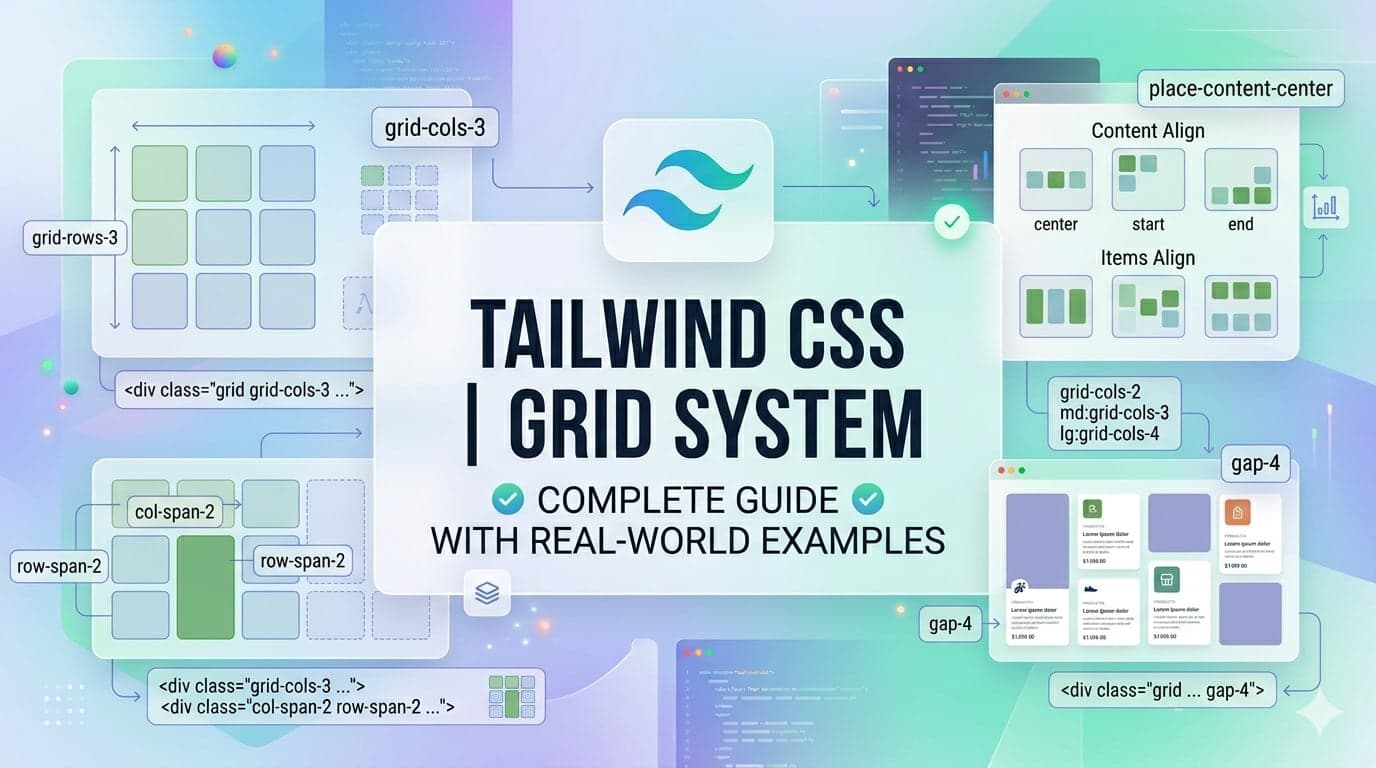
🧱 Tailwind CSS Grid System (With Real-World Examples)
If Flexbox is for one-dimensional layouts (row OR column), then Tailwind’s Grid system is your go-to for two-dimensional layouts (rows AND columns together)—just like how real-world dashboards, websites, and apps are structured.
Let’s break it down like a tutor would 👇
🧠 What is Grid (in simple words)?
Think of a newspaper layout or a dashboard UI:
Multiple rows
Multiple columns
Content neatly aligned in boxes
That’s exactly what CSS Grid (and Tailwind Grid utilities) help you build.
⚙️ Step 1: Creating Your First Grid
In Tailwind, you enable grid using:
<div class="grid grid-cols-3 gap-4">
  <div class="bg-blue-200 p-4">1</div>
  <div class="bg-blue-200 p-4">2</div>
  <div class="bg-blue-200 p-4">3</div>
</div>
🔍 What’s happening here?
grid→ turns container into gridgrid-cols-3→ creates 3 equal columnsgap-4→ spacing between items
👉 Real-world analogy:
You just created a 3-column product listing layout.
🛍️ Real-World Example 1: E-commerce Product Grid
Imagine you're building a Shopify store (which you actually are 👀)
<div class="grid grid-cols-1 sm:grid-cols-2 md:grid-cols-3 lg:grid-cols-4 gap-6">
  <div class="border p-4">Product 1</div>
  <div class="border p-4">Product 2</div>
  <div class="border p-4">Product 3</div>
  <div class="border p-4">Product 4</div>
</div>
💡 What this does:
Mobile → 1 column
Tablet → 2–3 columns
Desktop → 4 columns
👉 This is how Daraz / Amazon-style product grids work.
📊 Real-World Example 2: Admin Dashboard Layout
Let’s build something like an analytics dashboard.
<div class="grid grid-cols-12 gap-4">
  <div class="col-span-3 bg-gray-200 p-4">Sidebar</div>
  <div class="col-span-9 bg-gray-100 p-4">Main Content</div>
</div>
🔍 Explanation:
Total grid = 12 columns
Sidebar takes 3
Main content takes 9
👉 This is exactly how modern SaaS dashboards are structured.
🧩 Step 2: Controlling Column Span
You can make elements take more space:
<div class="grid grid-cols-4 gap-4">
  <div class="col-span-2 bg-green-200 p-4">Wide Card</div>
  <div class="bg-green-200 p-4">Normal</div>
  <div class="bg-green-200 p-4">Normal</div>
</div>
👉 Real-world use:
Featured blog post (bigger)
Highlighted product
Hero section
🧱 Step 3: Row Control (Less Used but Powerful)
<div class="grid grid-rows-3 gap-4">
  <div class="bg-purple-200 p-4">Row 1</div>
  <div class="bg-purple-200 p-4">Row 2</div>
  <div class="bg-purple-200 p-4">Row 3</div>
</div>
You can also span rows:
<div class="row-span-2">Tall Item</div>👉 Used in:
Pinterest-style layouts
Image galleries
🖼️ Real-World Example 3: Blog Layout (Featured + List)
<div class="grid grid-cols-3 gap-6">
  <div class="col-span-2 bg-gray-300 p-6">Featured Post</div>
  <div class="bg-gray-200 p-6">Sidebar</div>
</div>
👉 This is a very common blog design pattern:
Left = main content
Right = sidebar (ads, categories)
📱 Step 4: Responsive Grid (MOST IMPORTANT)
Tailwind makes responsiveness super easy:
<div class="grid grid-cols-1 md:grid-cols-2 lg:grid-cols-3">Breakpoints:
sm→ small screensmd→ tabletslg→ laptopsxl→ large screens
👉 Real-world:
You don’t need media queries anymore 🎉
⚠️ Common Beginner Mistakes
Using Grid when Flexbox is enough
If it's just a row → use Flex
If it's layout → use Grid
Forgetting responsiveness
Always think mobile-first
Overcomplicating spans
Keep layout simple
🧠 Pro Tip (From Real Projects)
In real production apps (Shopify, dashboards, SaaS):
Use Grid for layout structure
Use Flex inside grid items
👉 Example:
Grid = page layout
Flex = align content inside cards
🧪 Practice Task (Very Important)
Build this:
👉 A dashboard with:
Sidebar (left)
Header (top)
4 cards (stats)
Table section
Try using:
grid-cols-12col-span-*
🚀 Final Thought
Tailwind Grid is not just a utility—
it’s how you think in layouts.
Once you master it, you can:
Build SaaS dashboards
Create Shopify sections
Design complex UI systems
🔗 Previous Article
If you’re just getting started or want to strengthen your basics, check out the previous lesson:
👉 Part 7: Flexbox with Tailwind CSS: Complete Guide with Real Examples